
6How to use Jamaatna
Add a scanner & gate
Assign scanners to your entrances and follow each gate separately.
Steps
Step 1
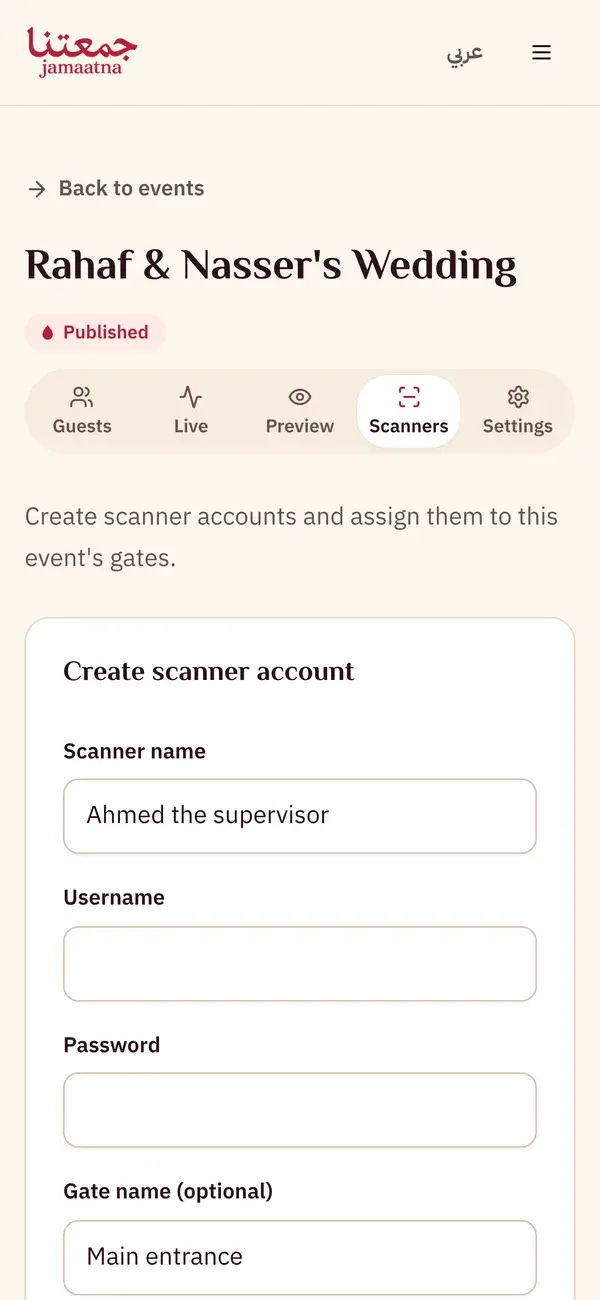
Open the "Devices" tab and create a scanner account
From your event page, go to the Devices/Scanners tab and tap "Create scanner account".
- The "Create scanner account" button
Step 2
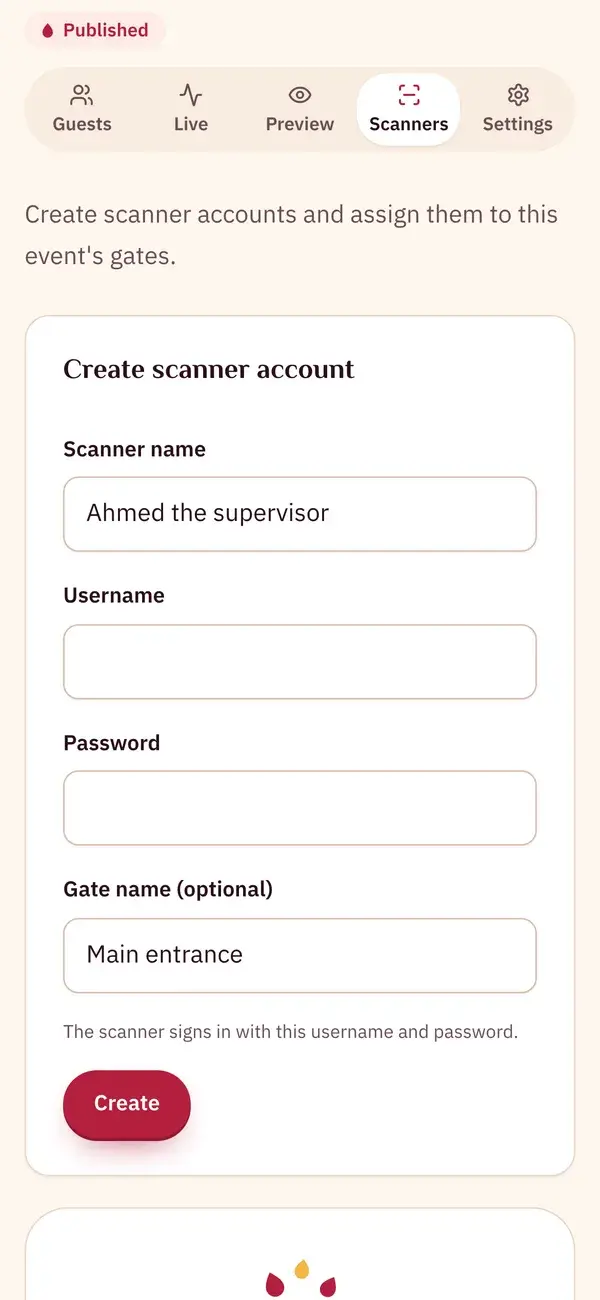
Name the gate and the username
Enter the scanner name and the gate name (e.g. Main Entrance), plus a username and password for the account.
- The gate name shows in the entry log and the attendance export
- Username and password
Step 3
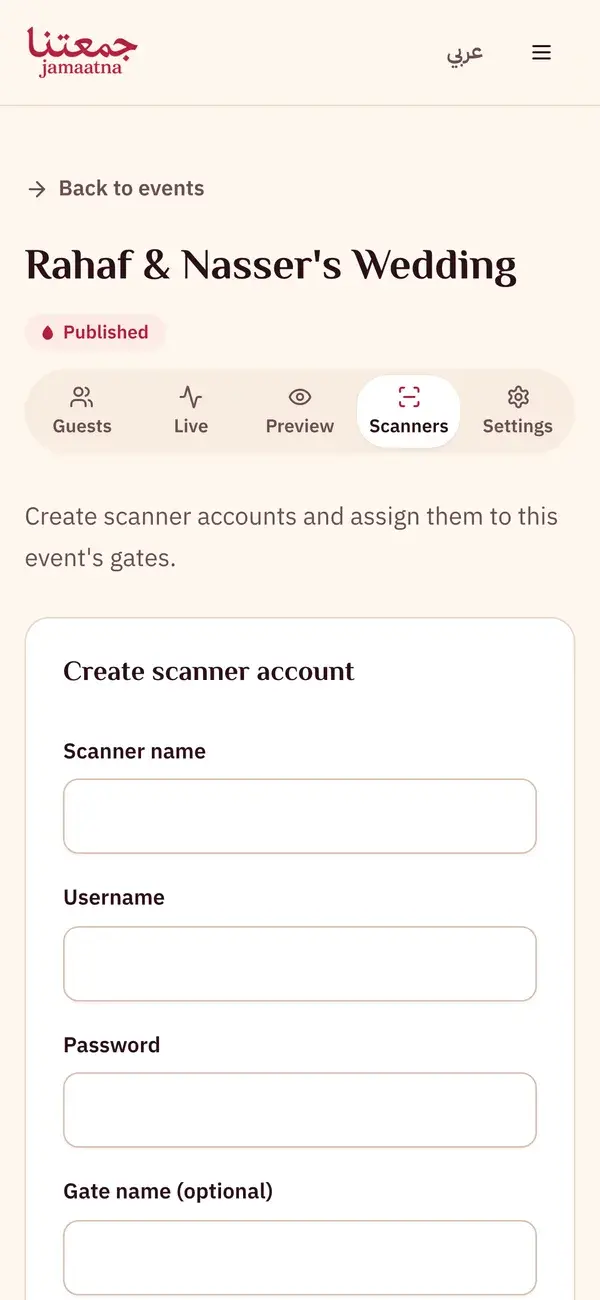
Share the login details with the scanner
Copy the username and password and send them to your gate staff so they can sign in from their phone and start scanning.
- The "Copy details" button
- Add multiple scanners per gate
Keep the guide as a PDF
The same steps in one file, to save or send to whoever is helping you get ready.
5 pages
Download PDF